Home Router Security: Nine Settings Worth Changing Today
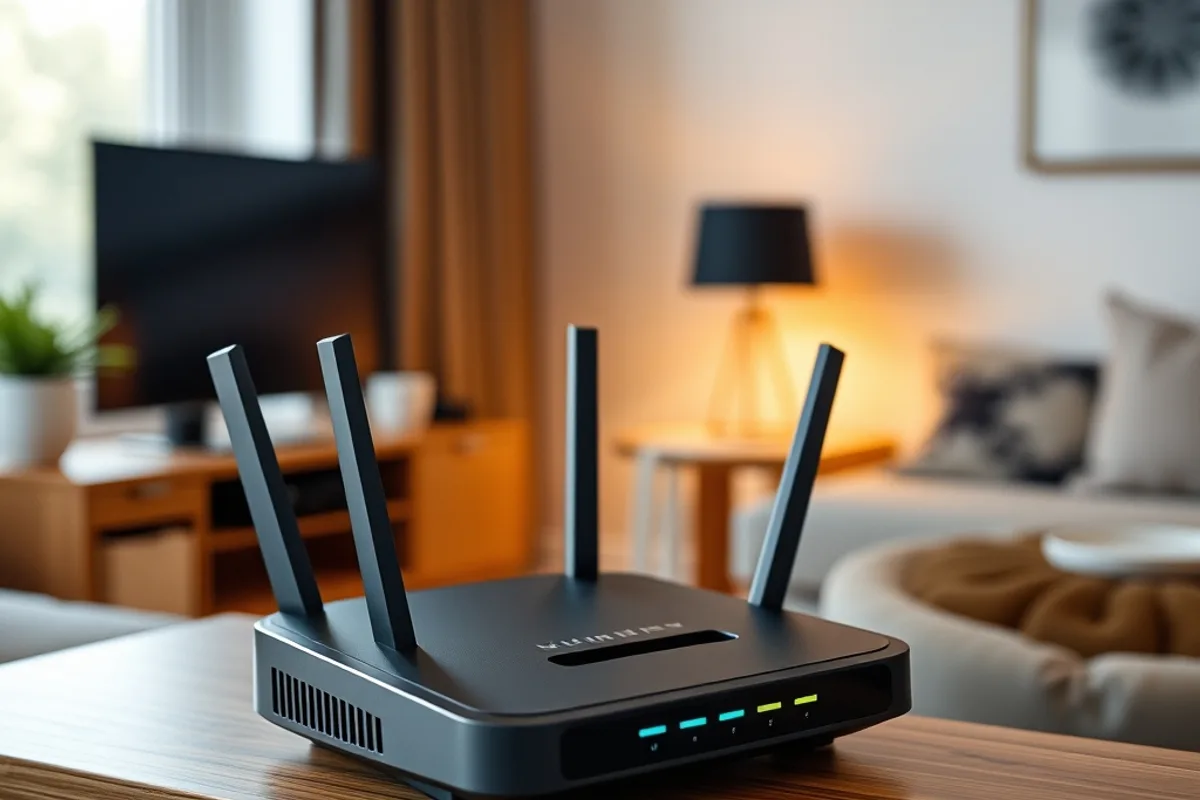
Most home security advice focuses on phones and laptops, yet the router sits underneath all of them. It sees every connection, hands out the addresses and decides which devices may talk to each other. When it is set up badly, everything behind it inherits the weakness.
The good news is that the fixes are short and permanent. You do not need new hardware or a subscription, just access to the admin page and half an hour. Do these nine things in order, and check them again when the seasons change.
1. Change the admin password first
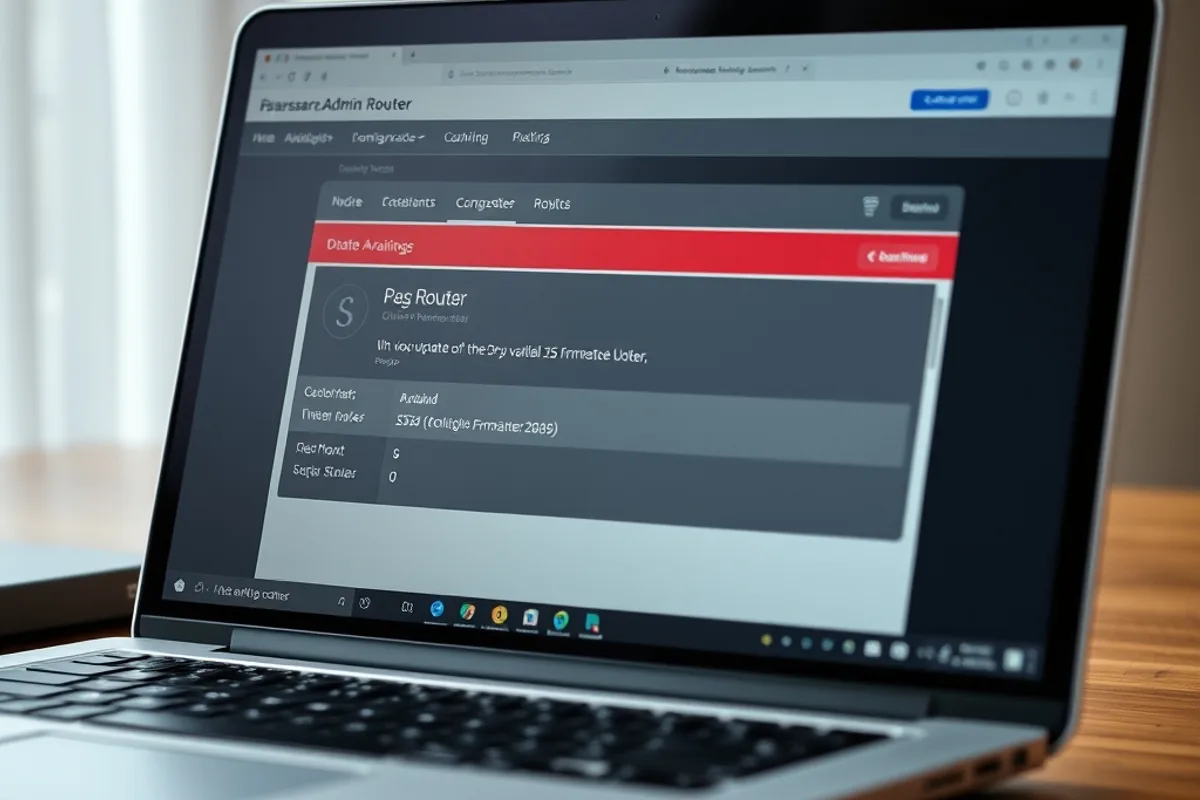
Router admin pages are protected by a password, and too many still use the one printed on the box. Anyone on your network, and sometimes anyone who can reach the router's remote page, can try that known default. Set a long unique password and store it in your password manager.
Do not reuse the Wi-Fi password for the admin page. They protect different things, and the Wi-Fi password is shared with guests, visitors and smart devices. A separate admin password means a guest who knows the network key still cannot change your settings.
2. Turn off remote administration
Remote admin lets you manage the router from outside the home, which sounds convenient and is mostly a liability. Unless you genuinely need it and have set it up with strong authentication, switch it off. Most routers call this remote management, cloud access or WAN administration.
If you do need remote access, put it behind a VPN rather than exposing the admin page to the internet. A router login page on the public internet is found by automated scanners within hours, and firmware bugs in consumer routers are common enough that exposure is not worth the risk.
3. Update the firmware and enable auto-update
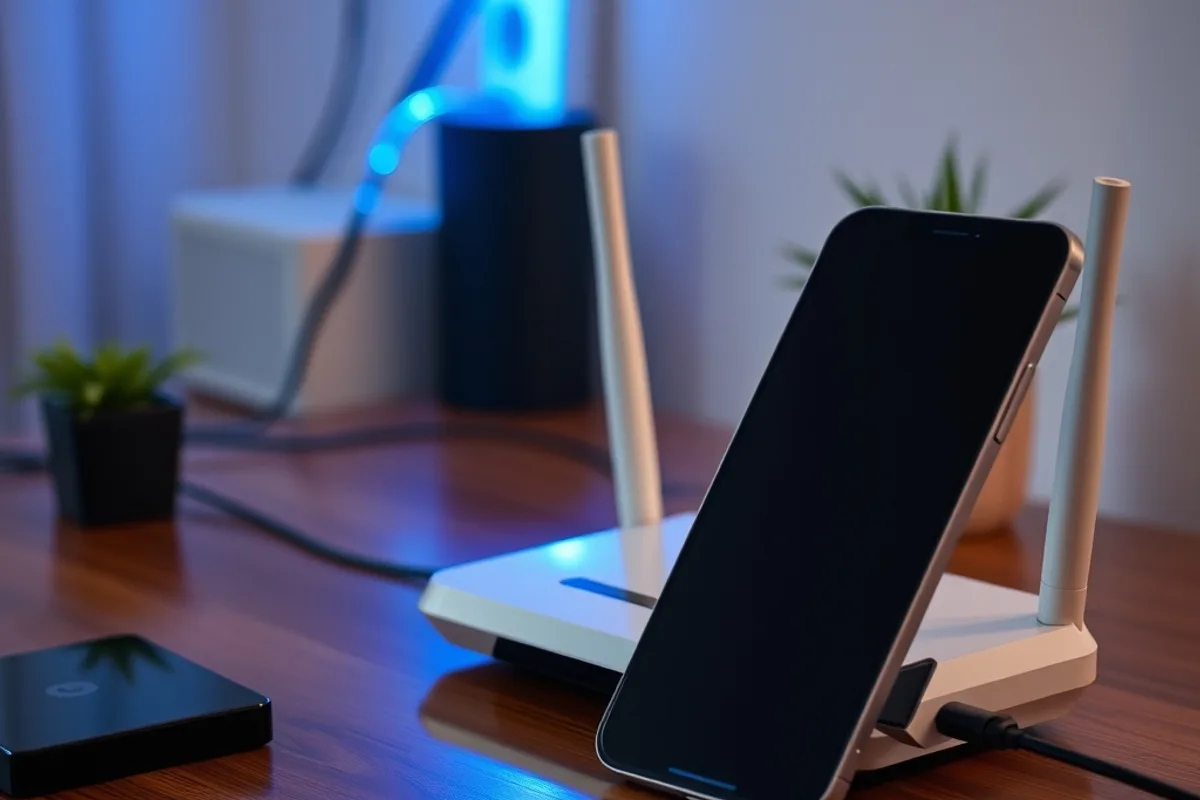
Firmware updates fix security holes, and routers usually do not nag you about them. Check the admin page for the current version and compare it with the manufacturer's support page. If automatic updates exist, turn them on and set a sensible maintenance window.
When a router reaches end of support, the updates stop. That is the moment to replace it, even if it still works. An unpatched router is a known quantity to attackers, and it is the quietest way a home network becomes part of a botnet.
4. Use WPA3, or WPA2 if you must
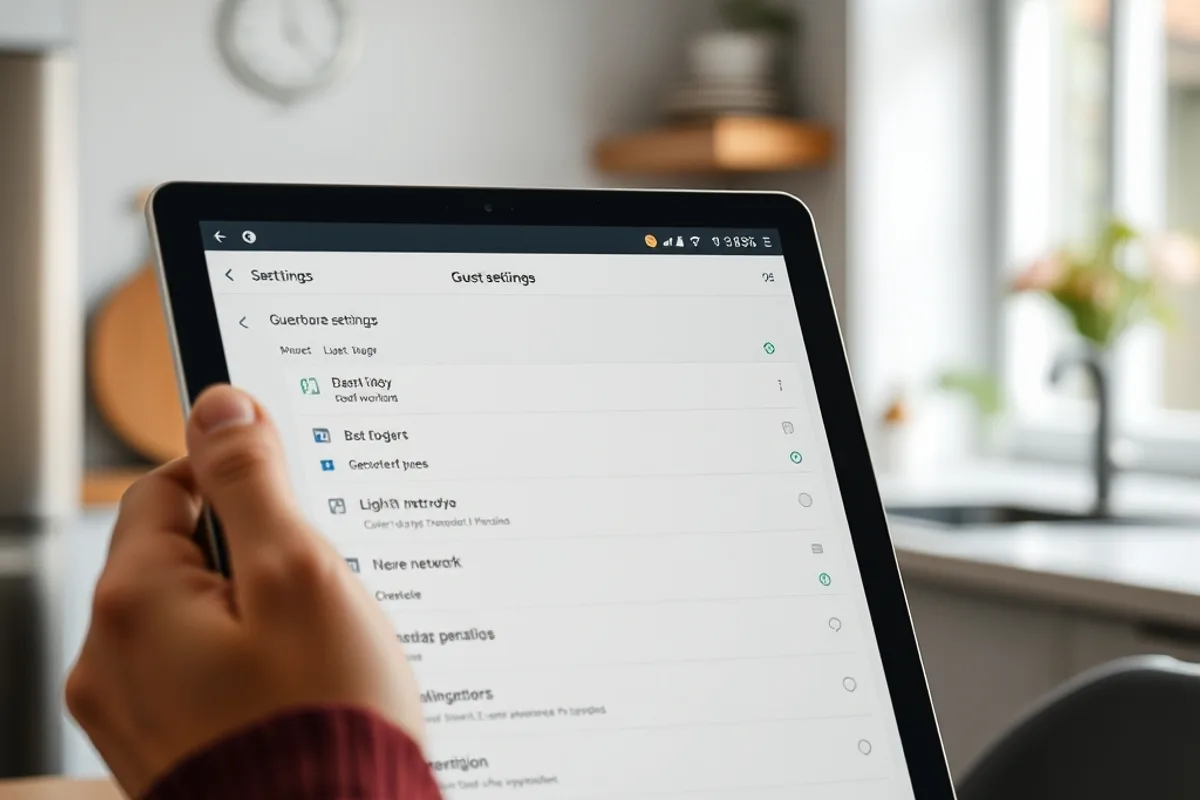
Wi-Fi encryption should be WPA3 where your devices support it, with WPA2 as the fallback. Avoid the older mixed modes that allow WEP or TKIP, and never run an open network for convenience. If an old device cannot join WPA2, replace the device rather than weakening the whole house.
Change the Wi-Fi password from the one on the sticker too. If it is printed on the router, it is also in the manual, and possibly in a photo someone took when they set the router up.
5. Split the guest network
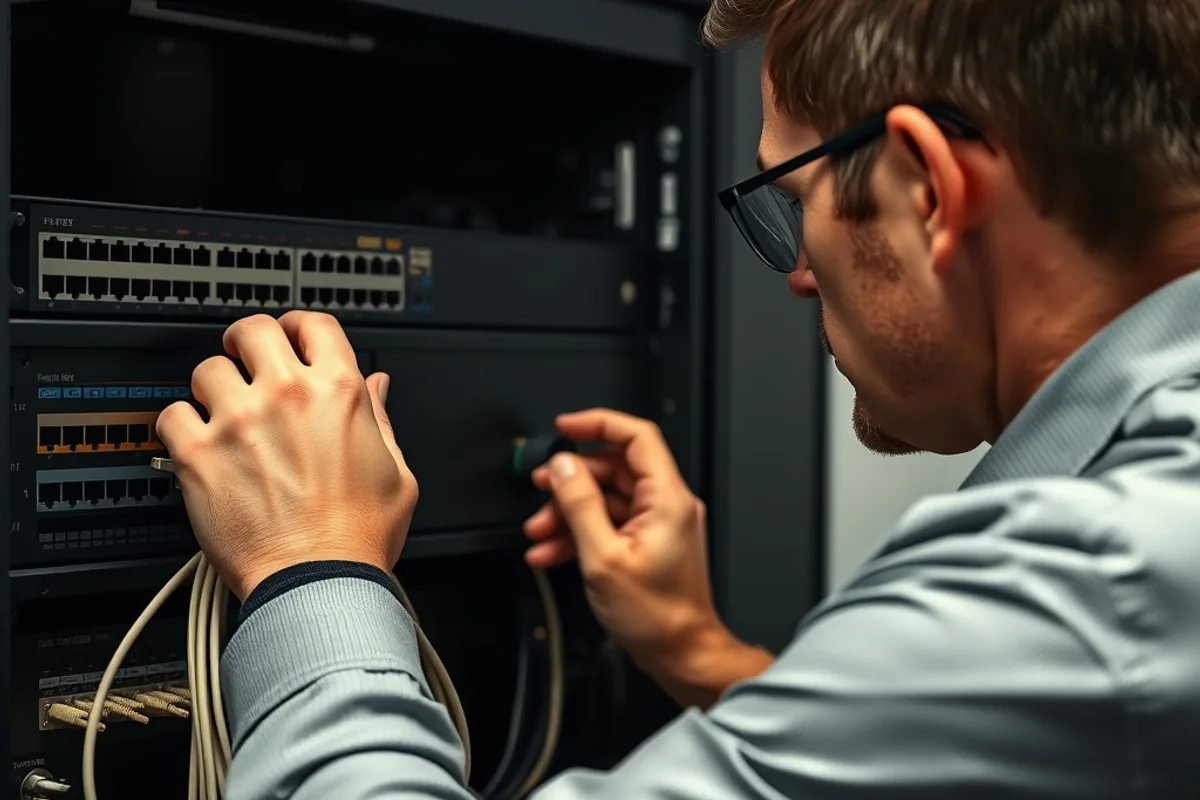
Smart plugs, cameras, TVs and robot vacuums are the least maintained devices on a home network. Put them on a guest network so a compromised gadget cannot reach your laptop or your files. Most routers support this in one toggle, and it is the highest-value change on this list.
Give the guest network its own password, disable client isolation only if devices must talk to each other, and keep the admin page off it. If the guest network cannot reach the router settings, it is doing its job.
6. Check what is actually connected
Open the client list and read it. You should be able to name every device. Anything you do not recognise deserves investigation: change the Wi-Fi password, remove the device and see whether it comes back. Names are often useless, so match by manufacturer and connection time.
This list is also the easiest way to spot a device that should not be online, such as an old phone still signed into your accounts or a smart speaker in a spare room. Fewer connected devices means fewer things to patch.
7. Change the DNS, carefully
Your internet provider's DNS resolver is fine for most people, but switching to a reputable public resolver can improve speed and block some malicious domains. Do it on the router so every device benefits, and write down the old setting so you can revert.
Be sceptical of free DNS services that promise everything. A resolver sees every domain your household visits, so choose one with a clear privacy policy and a real organisation behind it, not an anonymous landing page.
8. Disable features you do not use
UPnP, WPS and remote file sharing are convenient and frequently abused. WPS in particular has a long history of weakness and no real benefit in 2026. Turn off anything you cannot explain, and re-enable only when a specific device fails without it.
The same applies to port forwarding rules you created years ago for a games console. Every open port is a door, and the list is usually longer than anyone remembers.
9. Write down the recovery plan
Keep a note with the admin password, the Wi-Fi password, the internet account details and the router model. If the router fails, a replacement is a twenty-minute job with that note and a two-hour job without it. Store the note offline, not in a file on the network it protects.
The bottom line
Nine settings, one afternoon, no new hardware. The router is the quiet foundation of home security, and most of the risk comes from defaults nobody changed. Fix the defaults, put the smart gadgets on their own network, and diarise a firmware check every quarter.
For official guidance, see CISA home network security checklist.
The router is the one device every other device trusts. Spend thirty minutes on it and the whole house gets safer.thorariback Editorial
We cross-check our advice against independent, official sources. For security guidance see the Cybersecurity and Infrastructure Security Agency, and for search documentation see Google Search Central.